Uninstalling a Floating License
Important Notice for VirtServer Customers
Starting from ReadyAPI 3.62.0, VirtServer 3.29.0, and TestEngine 1.34.0, SmartBear Product Family has deprecated file-based licenses in favor of the ID-based SmartBear License Management (SLM) system. As of October 1, 2025, file-based licenses are no longer issued, activated/deactivated, or supported; all new and updated licenses are managed through SLM. For more information and timelines, refer to the File-based License End-of-Support Policy page.
If you want to use your VirtServer license on a different machine, you must first uninstall it. This topic explains how to do that.
Requirements
To uninstall a floating license online, you need a functioning Internet connection.
The firewalls and proxies in your network should allow access to the
https://activation.smartbear.comandhttps://licenseusage.smartbear.iowebsites through the80and443ports.
Using Web UI
Open the VirtServer web interface and log in as an administrator:
Go to the VirtServer homepage:
https://<virtserver-host>:<port>/virtserver#/
For example, if VirtServer is installed on your local machine and you run it on the default port, use the following link:
https://localhost:9090/virtserver#/
Go to Admin > License Administration tab and click Uninstall License:
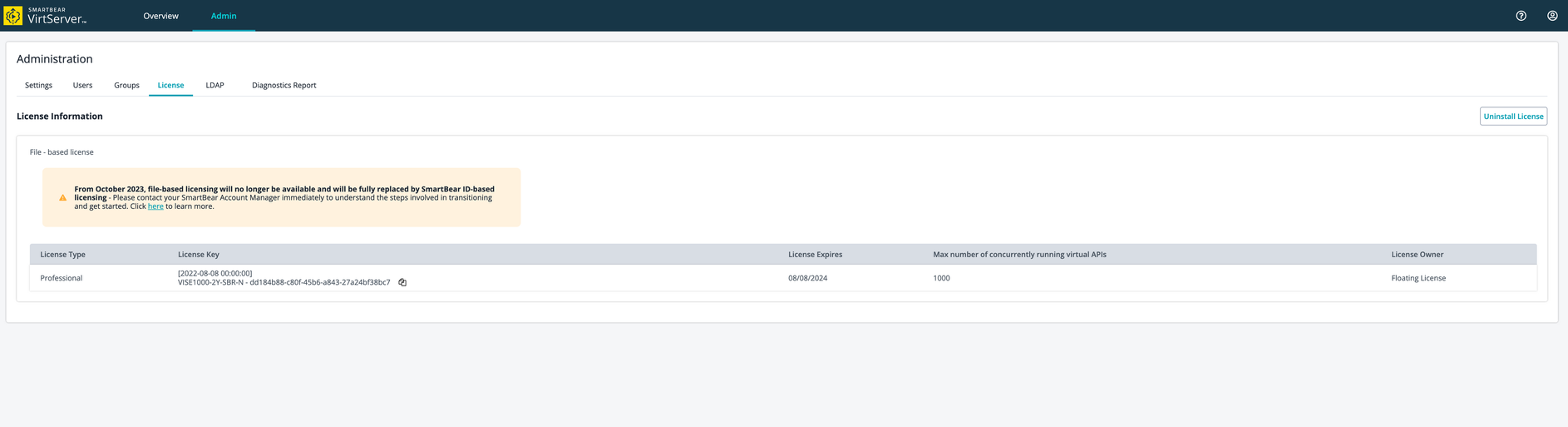
In the dialog that appears, click Uninstall:
Follow the on-screen prompts for the Uninstall sequence.
The license information screen returns to Add License status.
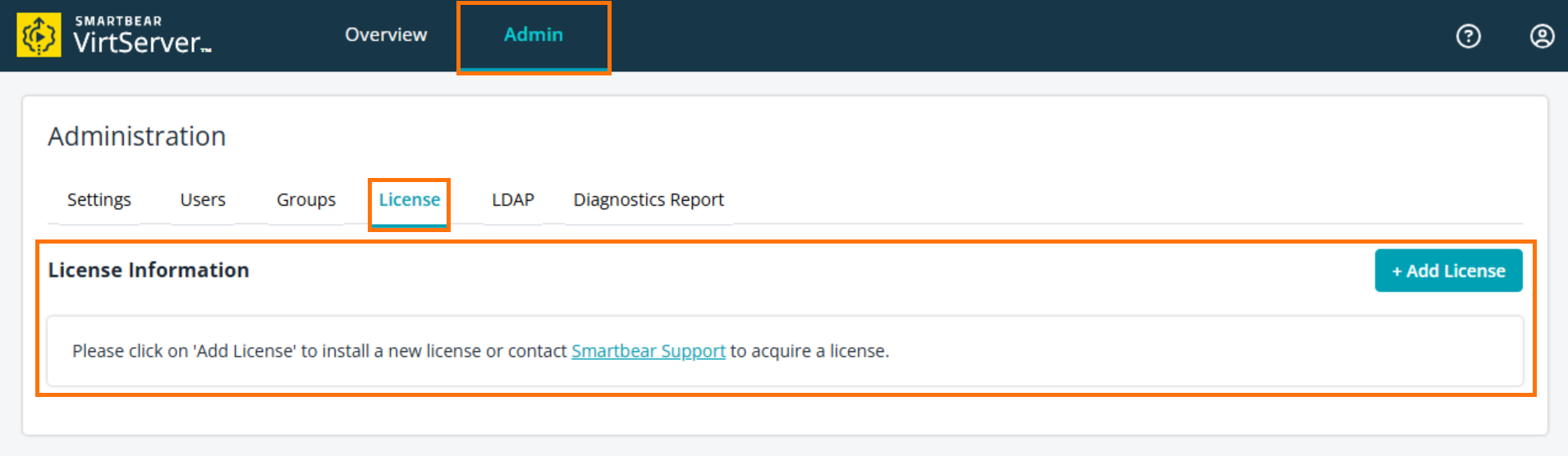
To use the product, you will need to install a new license.