Free an On-premises License
Important Notice for VirtServer Customers
Starting from ReadyAPI 3.62.0, VirtServer 3.29.0, and TestEngine 1.34.0, SmartBear Product Family has deprecated file-based licenses in favor of the ID-based SmartBear License Management (SLM) system. As of October 1, 2025, file-based licenses are no longer issued, activated/deactivated, or supported; all new and updated licenses are managed through SLM. For more information and timelines, refer to the File-based License End-of-Support Policy page.
Why you may need to free a license
When a license administrator activates an on-premises License on an On-Premises License Server in your network, the license becomes bound to the License Server. This means it cannot be activated on another machine. To move it to another computer or convert it back to an online license, you need to release the license on your On-Premises License Server first.
Uninstall the license in VirtServer
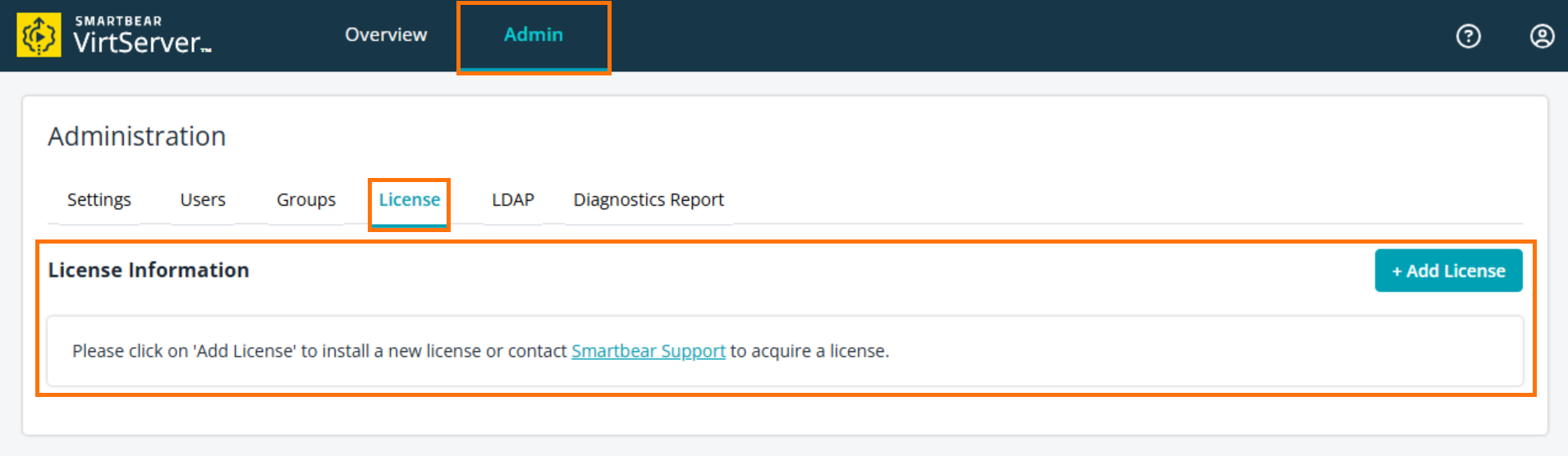
When you want to uninstall your license, go to the VirtServer Web UI, click the Admin tab, and then select License in the Administration section.
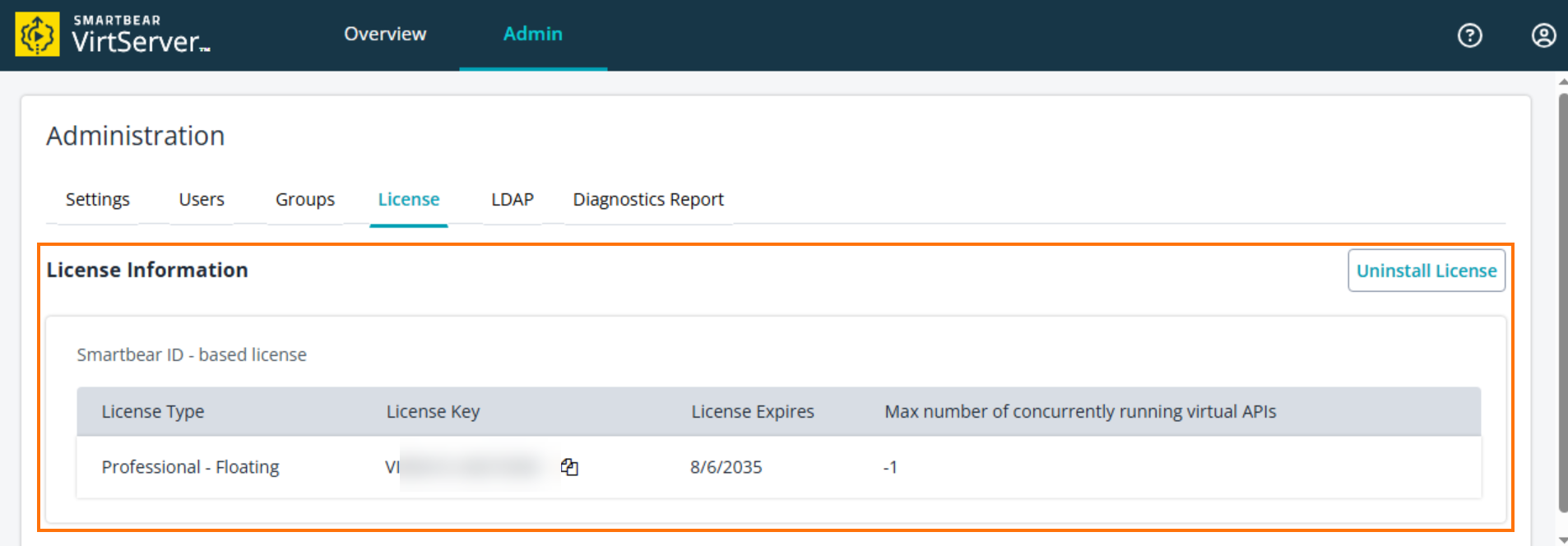
Click Uninstall License.
Follow the on-screen prompts to uninstall the license from the product.
After uninstalling the license, a confirmation message appears:
Success: License has been deactivated.The License tab returns to its default state with no license installed.
How to free an on-premises license
The on-premises license is bound to the computer where the On-Premises License Server is installed.
To free the license, your license administrator should log in to the On-Premises Licensing Portal and free the license by selecting Return License to Licensing Portal.
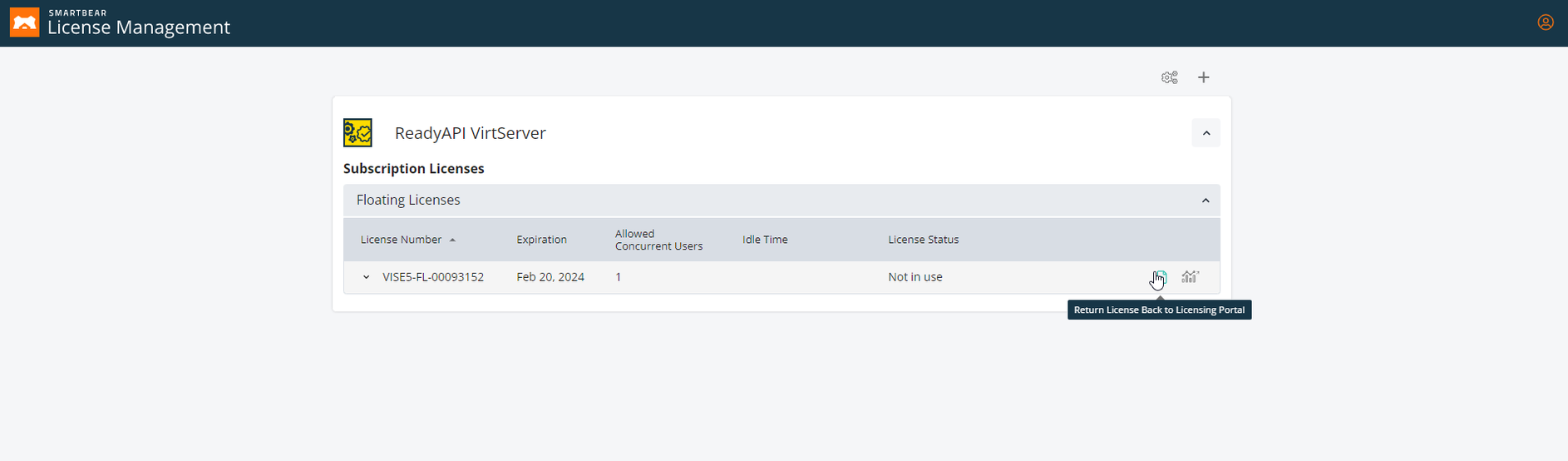
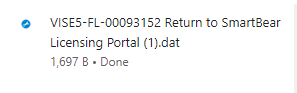
The license administrator generates the server fingerprint file or data.
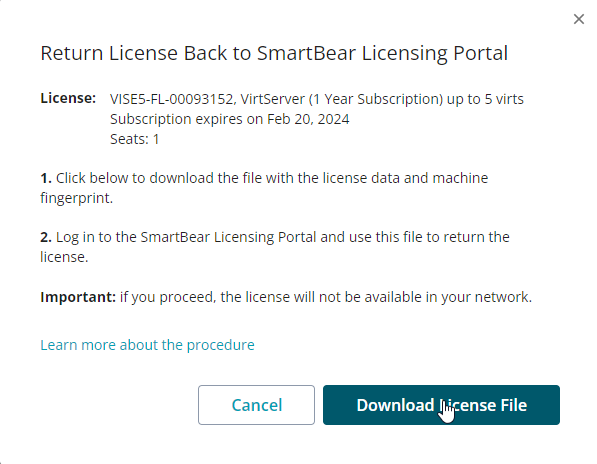
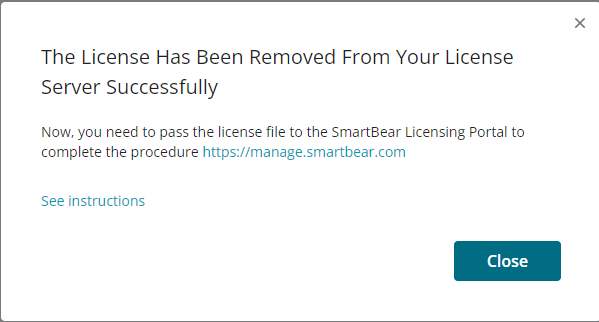
The system removes the license from the On-Premises License Server.
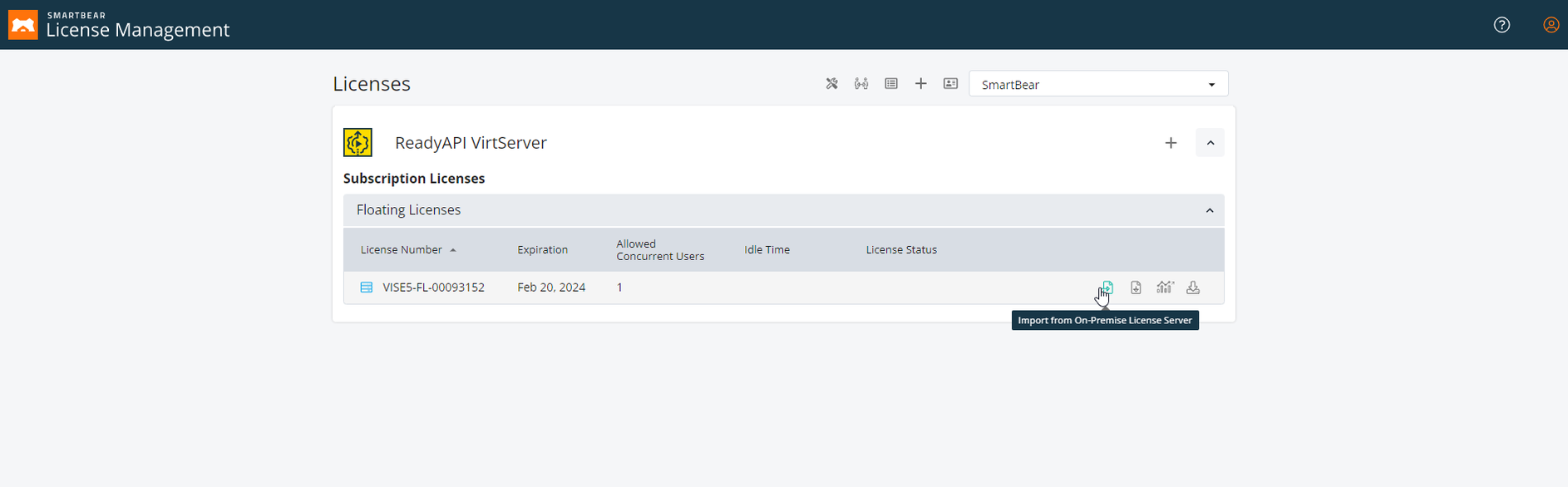
In the SmartBear Licensing Portal , the license administrator imports the server fingerprint file from the On-Premises License Server.
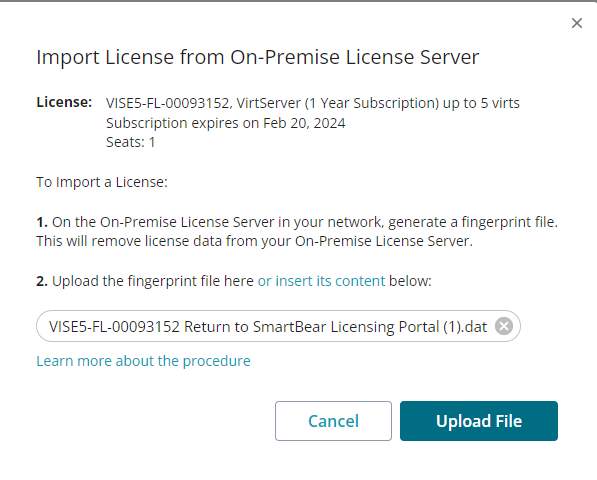
The license administrator adds the server fingerprint file or data.
The license administrator clicks Close to confirm.
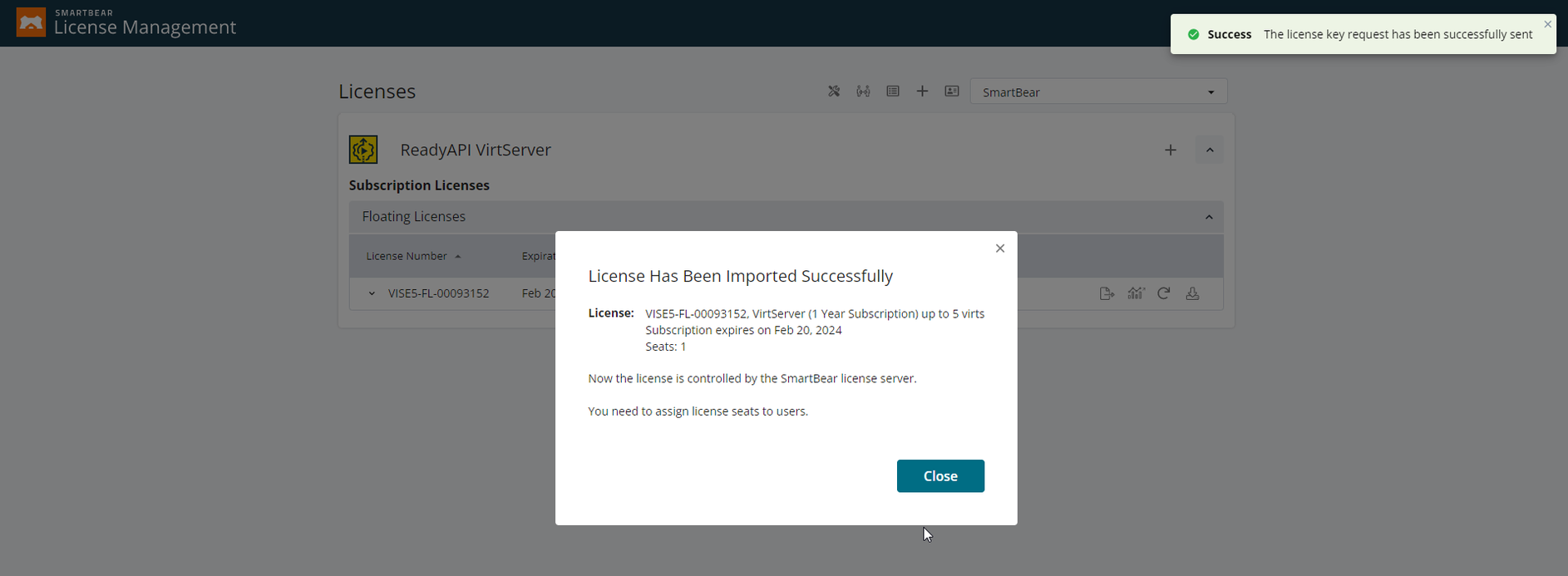
The on-premises license is now returned to the SmartBear Licensing Portal.
After return, the license is available in the SmartBear Licensing Portal for direct use or for export to another On-Premises License Server.
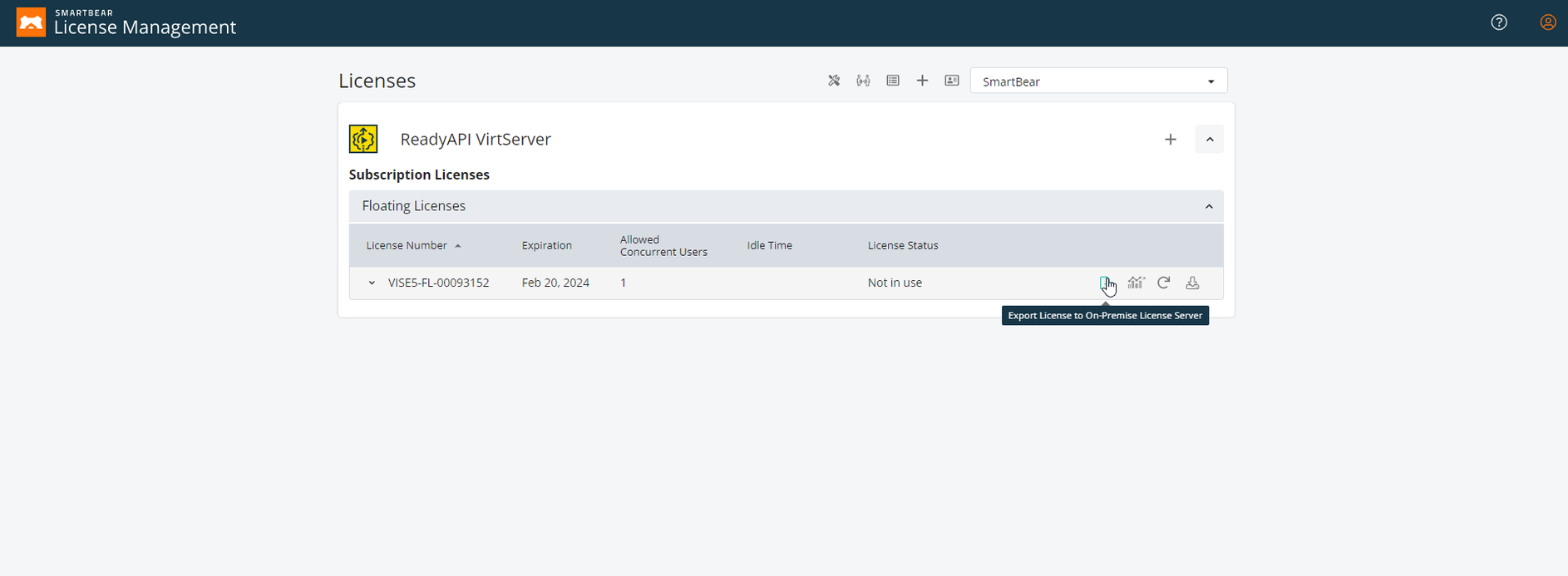
The step-by-step instructions are available in the SmartBear Administration documentation.